


The MacValley blog

Welcome to the MacValley blog, your first stop for all the latest MacValley news and views.
|
The MacValley blog Editor: Tom Briant
|
|

Monday, January 2, 2017
Installing Vipriser, a PDF printer that works in macOS 10.12 Sierra down to 10.9
I’ve saved lots of on-line articles as PDFs for future reading. I used to use the PDF menu on the Printer Dialog. That’s very handy if you want to save a receipt to the reestablished Web Receipts folder. But you have to set a destination and give your PDF a name.
Now I use the very handy Vipriser app, which mimics a printer, but prints to a PDF instead of paper. It assigns each print job a unique number and gives the PDF a name based on the title of the article. They all go into a single folder, where I can choose to move them later to another folder.
If you’re surfing the Net, you don’t have to stop and set up the name and destination of the PDF of the article. Just hit the Command+P keys, perhaps choose how many pages of the article you want to print (leave out the extraneous comments), and press the Enter key to start printing. You’re done in a flash and off to the next article.
Vipriser takes a bit of effort to install. I’m not talking about compelling it from source code. I mean dealing with the fact that it’s not officially signed by an Apple developer and you have to go through some steps to open it the first time.
So here’s my illustrated list of the steps you need to take to install Vipriser 2.2, which works with OS X 10.9 to the latest, macOS 10.2.2.
1.
-
Go to onflapp.wordpress.com and download Vipriser 2.2. The caption on-screen says it’s Vipriser 2.1, but you’ll download version 2.2.
2. Go to where you’ve downloaded the Vipriser ZIP file (by default, it’s your /Downloads folder in your /Users/<username> folder). It’s 4.7 megabytes in size.
3. You may already see the Vipriser app in your /Downloads folder, because you’ve left Safari on the default setting of opening “safe” files such as archives. Vipriser is 7.8 megabytes in size.
4. If you see the ZIP file, just double-click on it to open the ZIP archive.
5. Now move Vipriser from your /Downloads folder into your /Applications folder.
6. Double-Click on the Vipriser app. You may hit a snag here. ViPriser’s developer didn’t sign the code. You have to manually open the app.
7. So right-click or control-click on the Vipriser icon in the /Applications folder once.
You’lll get the following warning. Go ahead and click on Open.
You’ll get a drop-down menu whose first selection is Open. Double-click on Open and you’ll open the app. After this, you only need to double-click it. It’s made it into the club.
8. Now you will install 3 printer drivers. The first one is just called “Print to Vipriser”. Choose this one if you just need PDF’s. The other two are for specialized purposes. Check the Web site for an explanation.


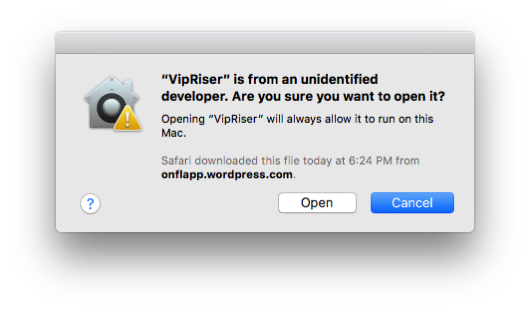
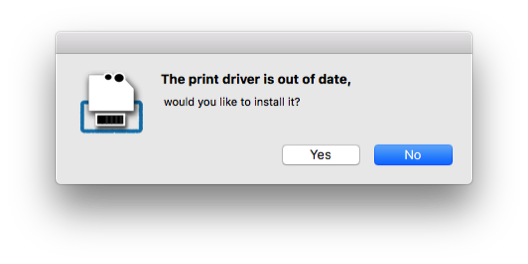
Click on Yes to proceed.

Click on OK to proceed.
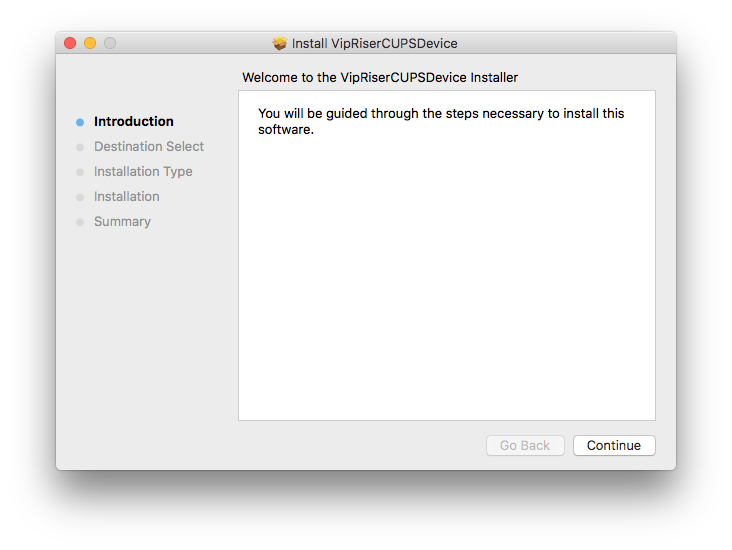
Click on Continue
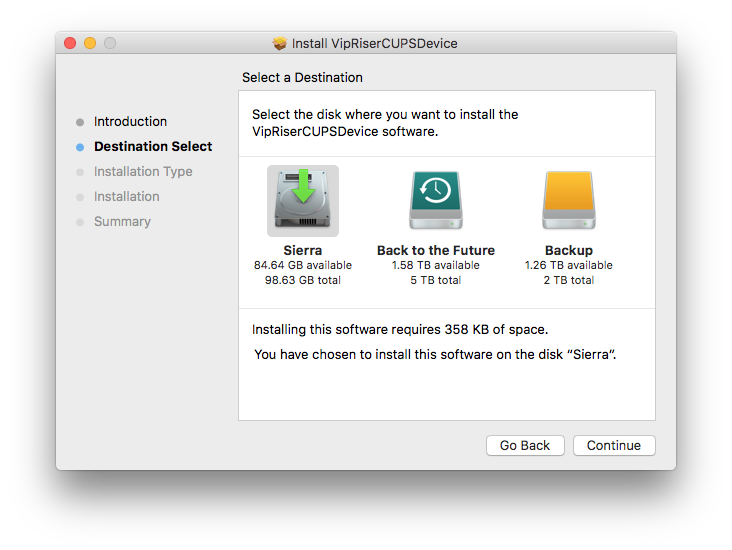
You’ll want to pick the drive you start from. In this case, it’s my test drive Sierra.

Click on Install to proceed.

You should see this in a few minutes.
Now, after you instal the 3 printer drivers, it get a little complicated. Bear with me and continue.
Go to your Printer and Scanner Preferences.


This is the complicated part. You have to delete this initial installation of Vipriser from your printer selections and reinstall it manually.
So click on the icon for Vipriser and then click on the “-“ button below it. You’ll see the following:

Yes, you do want to delete the printer. You don’t delete the essential printer driver files, though. Go ahead and press Delete Printer.
NOw go back to the /Applications folder to launch Vipriser.
In the Printer and Scanner preferences, click on the “+ “ sign at the bottom of the list of printers.

This brings up the Add Printer dialog box. You’ll see three selections for Print to Vipriser. You probably want the first one, Print to Vipriser. The other two are for special situations, Consult the developer’s Web site for further information.
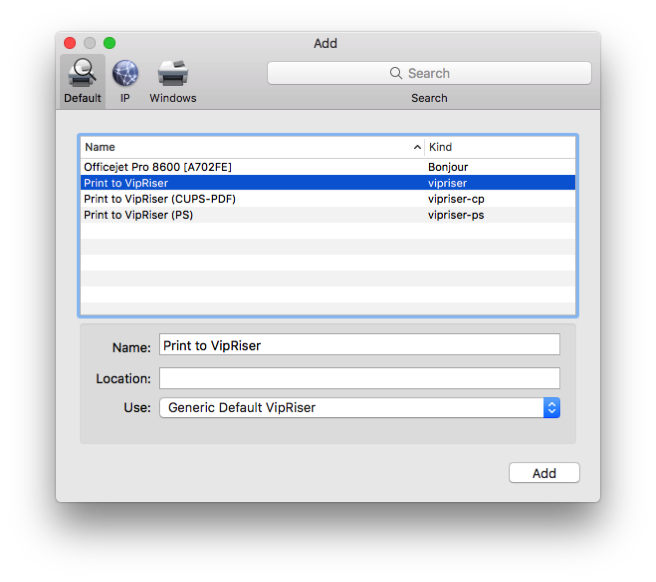
Click on Add to add Vipriser as a printer.
Now to set Viprriser’s preferences. You want to start the app at login and you want to select where you want the PDF”s to go.
Now look at the top right-hand side of your menu bar. You’ll see the Vipriser menu bar icon. It’s the one at the far left of the screen shot.

Click on the icon. You willl get a drop-down menu.
By default, your PDFs go onto your Desktop. You can choose to put them elsewhere.

Now click on Preferences…. Close to the Bottom.

You have numerous opt8ions for where the PDFs go. To select a folder other than the Desktop,first go to your /Documents folder and set up a new folder. I called mine My VIPriser files. It’s difficult to set up a new folder from within the File Dialog.
Now click on the tiny (!) double-headed arrowhead at the right-hand side of the text Copy Files to Folder. Don’t click on the icon of the folder, you want to go further to the right. See them? The tiny arrowheads? That’s what you want. Double-click on them!

To choose the folder you want, don’t click on the preselected folders. You want to click on the word Choose...
This will open a file dialog where you can maneuver to the folder you set up previously.
You’re done.
Now test it. Give it a moment, and then check the folder you chose. You should see a PDF with a jolb number and the title of the article you were reading.
Tom Briant
Editor, MacValley Blog


Sunday, January 1, 2017
Sunday, December 25, 2016
Onyx: Mac Maintenance Made Easier
Onyx: Mac Maintenance Made Easier: ""
(Via.)
Make your life easier and use Onyx!
Tom Briant
Editor, MacValley Blog
Restore Smart Searches to OS X Finder's Sidebar
Restore Smart Searches to OS X Finder's Sidebar: ""
(Via.)
Add some functionality back to the Finder’s sidebar that Apple took away in 10.7 and afterward. But you can do it!
Tom Briant
Editor, MacValley Blog
Senior Correspondent Arnold Woodworth's Weekly Web Wrap-up for Sunday, December 25, 2016
The whole 'Mac vs. PC' thing is so over, and 'Android vs. iPhone' is close behind
Because so much of what we do these days is based in the browser and in the cloud, Mac versus PC is no longer a lifestyle decision like it was back when boxed software ruled all.
It's just a matter of taste. Even Microsoft knows it.
And in the exact same way, because of the rise of the App Store model, iPhone versus Android is barely a thing anymore to most people. That's why analysts now believe that iPhone versus Android is "stable" — nobody cares anymore.
The operating system wars are over.
After many years of being a Mac faithful, I've been using Windows 10 for the past year
They can both win. Windows and Apple have their die-hard fans, sure, but they can happily coexist.
The same goes for the mobile platforms, too.
Apple and Google both won. Apple's iPhone is ridiculously profitable, while Android dominates with something like 87% of the market. Each of them got exactly what it wanted from the smartphone business. Apple is selling a lot of profitable iPhones; Google gets its web services and search engine in front of more people.
http://www.businessinsider.com/apple-mac-vs-microsoft-windows-pc-is-over-2016-12
The 22 biggest tech scandals of 2016
http://www.businessinsider.com/biggest-tech-scandals-of-2016-2016-12/
Monday, December 19, 2016
Gifts to get yourself once you get your new Mac home
I have written about what you should give the person getting a new Macintosh. Now I would turn my attention to those of you who received a new Mac for the holidays.
First, I would suggest you download LibreOffice 5.x for those instances when someone sends you a file in an format last used in the ‘90s.
This could include Appleworks & Clarisworks, the precursors to today’s iWork. LibreOffice will open word processing, spreadsheet and presentation
Files for this line of compact office suites written for the old PowerPC Macs.
LibreOffice will also read old Word for Windows and Word for Mac formats that the latest versions of Word will not open. It will also open Wordperfect for DOS &
Windows and Mac files. So this is a very handy piece of software to possess. You may use iWork or Office for Mac as your main office suite, but sometimes you need some help.
Second, if you have audio &video files in oddball formats that DVD player & QuickTime Player won’t open, you will need VLC 2.x. This piece of software opens an
Amazing number of audio and video formats past and present. It will also play commercial DVDs and allow you to take snapshots of individual frames of the DVD.
Third, for Mac owners, I would recommend getting The Unarchiver. You will find this in the Mac App Store under the top free apps listing. It will open more archive formats than the
Buiilt-in macOS archive software.
Fourth, when you want to remove an app with all its preference files, use an application such AppCleaner. It is a free basic app. Other apps such as the paid AppDelete will perform additional
Functions. But to just get rid of an app, AppCleaner works fine.
Fifth and Sixth, I would recommend either Onyx or Cocktail. These two utility apps allow you to adjust preferences that Apple only lets you change through the Terminal default command. Now you
Can do it through a graphic interface. These commands include changing the screenshot’s file format and which directory to store it in.
Onyx and Cocktail come in versions specific to each macOS release. You don’t use the one written for macOS Sierra with OS X El Capitan!
Onyx is free and Cocktail costs $19. Try them both (Cocktail has a generous test period) and see which one you prefer.
Finally, I”d get Firefox and Chrome in addition to Apple’s own Safari. If you do work on other computers and OS besides macOS, these two browsers can be worth their weight in gold.
That’s my recommendations. If you enter a request for recommendations on Google, you’ll get all kinds of suggestions.
Tom Briant
Editor, MacValley Blog
Saturday, December 17, 2016
Gift from the Computer Literate to Give to the new computer owner
In my last column, I gave advice for non-computer literate people on what to give someone with a computer.
Now I will give advice to those of us who do know their way around computers on what to give computer owners, particularly new computer owners.
First, get them a backup drive. Get them two backup drives. Having a backup of your Mac or Windows or Linux machine is of utmost importance. If you own a Mac, use one of those drives with Time Machine to keep an hourly backup. Use the other one with Super-Duper or Carbon Copy Cloner to keep a frequently updated clone of your system. If your system fails due to hard drive/SSD malfunction, you can swap in this clone drive to resume work almost immediately.
Second, give them a USB wired keyboard and a USB wired mouse or trackball. It doesn’t have to be the fanciest keyboard and mouse. $20 will buy an Amazon Basic keyboard and mouse. You want a wired keyboard because some functions, such as switching between boot up volumes using the Option/Alt key and switching into Safe mode, require a wired connection.
Macs don’t require a special keyboard. Just substitute the Windows key for the Command key. I wrote an article here about using the Keyboard Preference Pane to switch the Windows key with the Alt key if you want the same keyboard placement as a real Apple keyboard
Besides, your new computer user may not like the touch of the notebook’s internal keyboard. Some people cannot get used to the trackpad on a notebook. So just plug in a wired keyboard & mouse combo and they can type away in comfort.
I’m not rejecting wireless keyboards, though, I use my favorite Logitech 2.4 Ghz wireless keyboard and mouse now and I am very happy with them. It’s just at certain times; you’ve got to have that wired connection.
Third, get some USB flash drives. Get some novelty figures and get some roomy drives, too. A Batman, a Snoopy, and some 64 GB drives make for great stocking stuffers.
Fourth, consider an Uninterruptible Power Supply if the recipient lives in an area with fluctuating power. I should warn you that an Uninterruptible Power Supply is heavy, as it contains a sealed heavy-duty battery. The unit charges the battery on a trickle charge while the battery runs circuitry to provide uninterrupted power. A word of warning, though: Don’t plug high wattage devices into the UPS’s sockets. High wattage devices mean laser printers. I think of laser printers as high-tech waffle makers.
Fifth, get them a good set of speakers or a nice set of headphones. If your recipient, like me, listens to music through their computer using iTunes or Spotify or Pandora; they’ll appreciate a good set of speakers. If you have to live with them in close quarters, you’ll appreciate them having a good set of headphones so they don’t share their taste (?) in music with you. 24 hours a day.
Sixth, they’ll need a container of wipes, like those Lysol/Vons wipes you buy in a pop-up plastic container. The computer owner needs to wipe up spills and crumbs to keep away unwanted vermin. You can plunk this on their computer desk the day after Christmas or Hanukkah.
Seventh, and this comes from my friend Quin of QAL Consulting in Indianapolis, IN, get some cans of compressed air. You will find these very handy in getting rid of crumbs.
